 mobiCut
Docs › Cut and time
Delete and restore segments
Deleting a segment leaves it out of the finished video. Nothing is lost: deleted segments can be brought back at any time.
Delete a segment
- Tap the segment on the timeline to select it.
- Tap 🗑 Delete.
The segment disappears from the timeline and from playback; a short red line marks where it was. The total length under the preview gets shorter.
See deleted segments
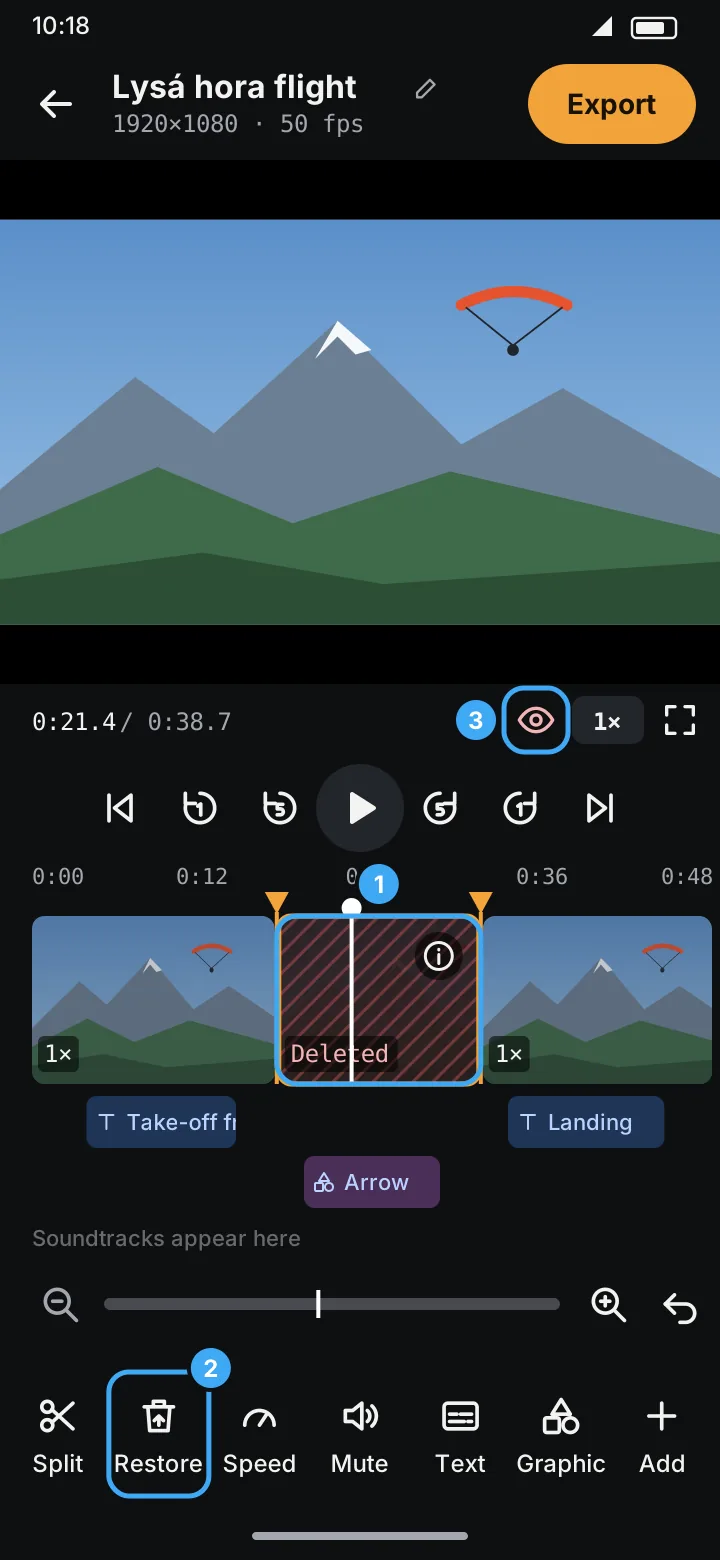
Tap the eye in the player bar under the preview (marker 3). Deleted segments appear again, hatched in red and labelled Deleted (marker 1). Tap the eye again to hide them.
Restore a segment
- Turn on the eye to show deleted segments.
- Tap the deleted segment. The Delete tool turns into Restore (marker 2).
- Tap Restore.
You can also restore from the segment's ⓘ details, or tap ↶ Undo right after deleting.
If every segment is deleted, the timeline says Every segment is deleted. Show deleted to restore.