 mobiCut
Docs › Build a story
Slideshow from pictures
Turn a set of photos into a video in one go: the best shots of the day, a trip in pictures. Pick the photos, say how long the video should be, and mobiCut makes a new project where every photo is an ordinary picture segment.
Make a slideshow
- On the start screen tap New project, then Slideshow from pictures.
- Pick the pictures in the gallery, up to 50, in the order they should play.
- Set the options (below) and tap Create.
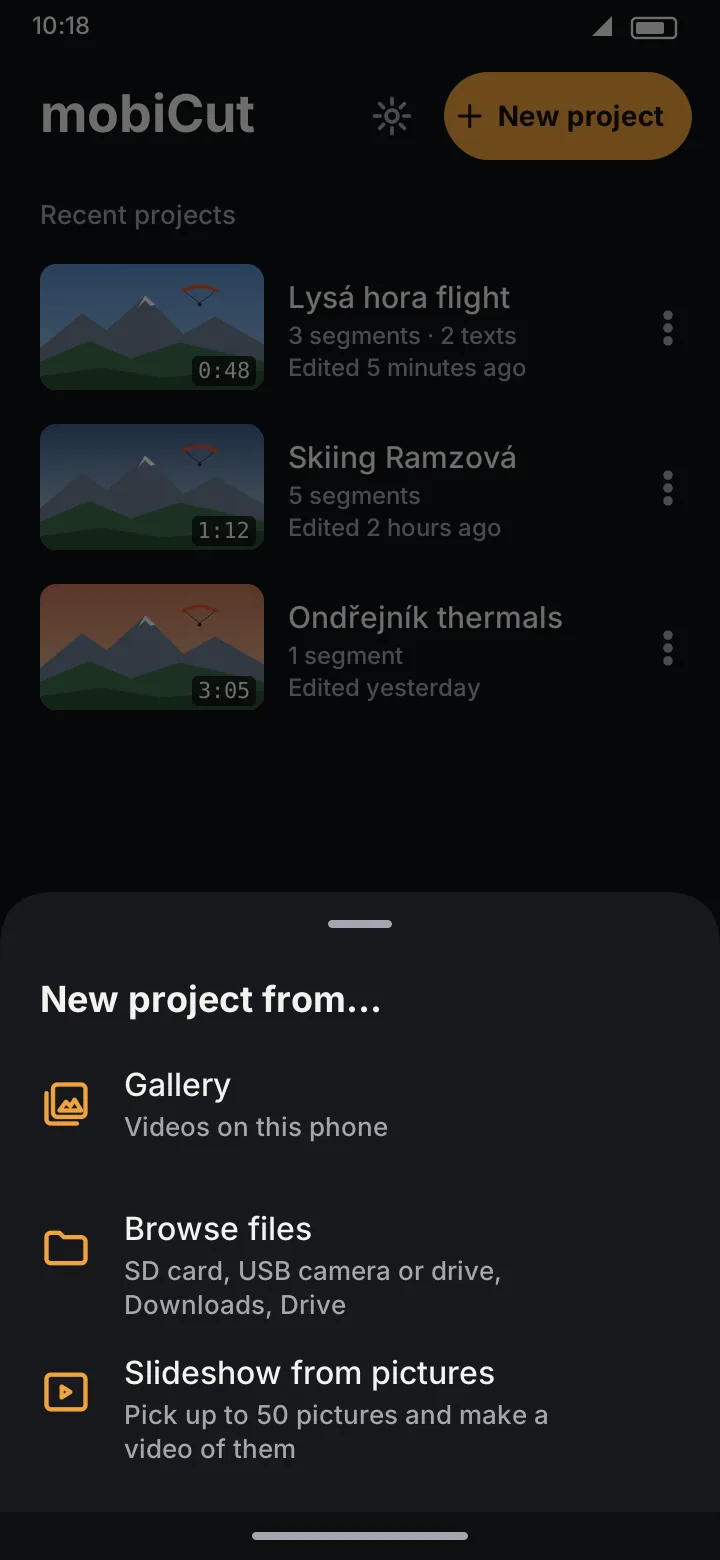
The editor opens with one segment per picture, in the order you picked them. The project is called Slideshow; rename it as you like.
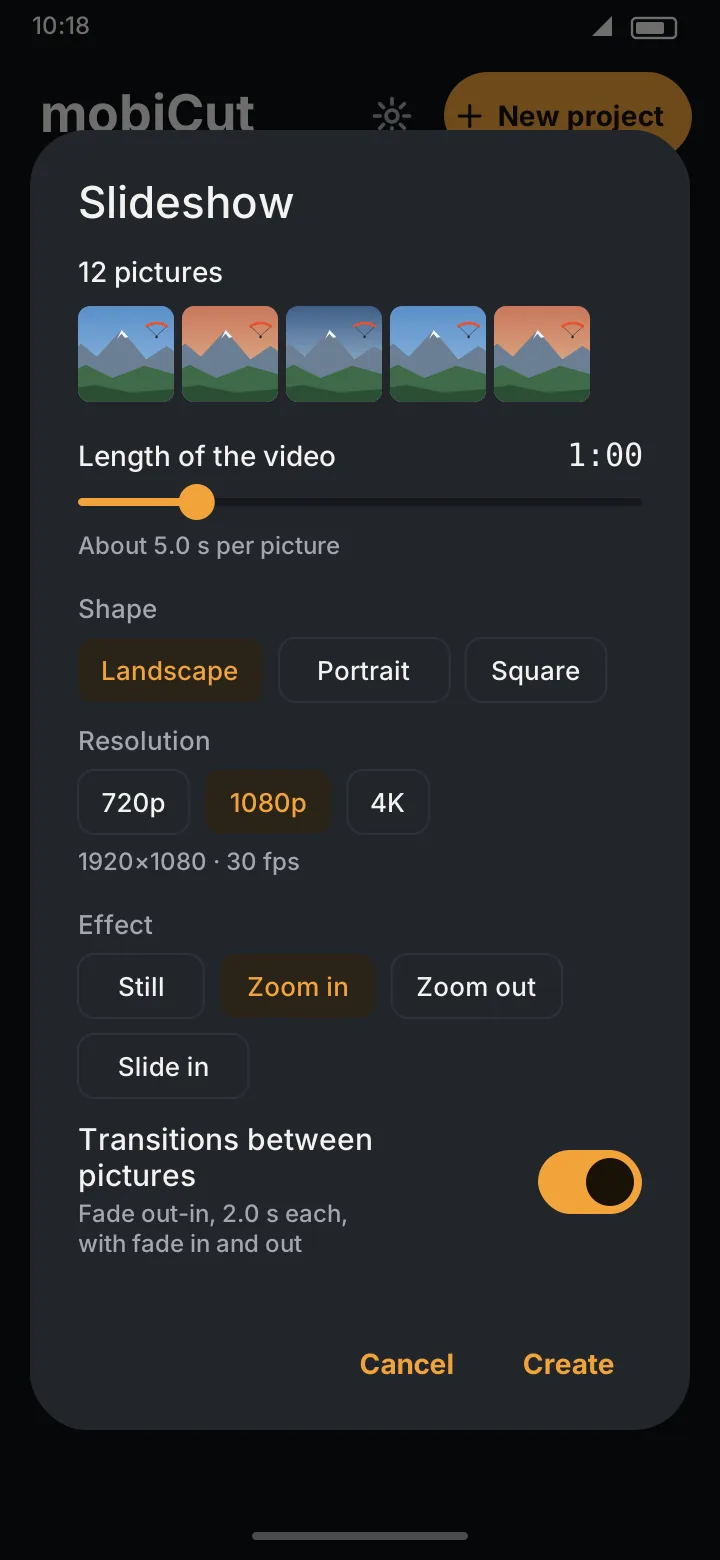
Options
- Length of the video: drag the slider. It starts at 5 seconds per picture and goes from 1 to 20 seconds per picture; the line under it shows the time each picture gets. Every picture is shown for the same time.
- Shape: Landscape (16:9), Portrait (9:16) or Square. It starts on the shape of the first picture. Pictures of another shape are fitted inside the frame.
- Resolution: 720p, 1080p or 4K, with the frame size in pixels under the chips. The video is 30 fps. 4K is Pro; Free exports up to 1080p.
- Effect: the same movement for every picture: Still, Zoom in, Zoom out or Slide in (see Pictures).
- Transitions between pictures: puts a transition at every join and fades in at the start and out at the end, with the type and length last used in Transitions at every join.
The dialog remembers the resolution, effect and transitions for next time.
After that
A slideshow is a normal project. You can change any picture's duration or effect in its Segment info, delete or add pictures, add texts, graphics, text slides, music and even videos. The frame keeps the shape and resolution chosen here, also when a video is added.
A slideshow has no sound of its own. Add a soundtrack for music; without one the exported video is silent.
Slideshows are free in both editions (4K needs Pro).