 mobiCut
Docs › Get started
Welcome screen
Each time you launch mobiCut it shows a short welcome screen with the logo, the app version and your edition. After 5 seconds it moves on to your projects by itself.
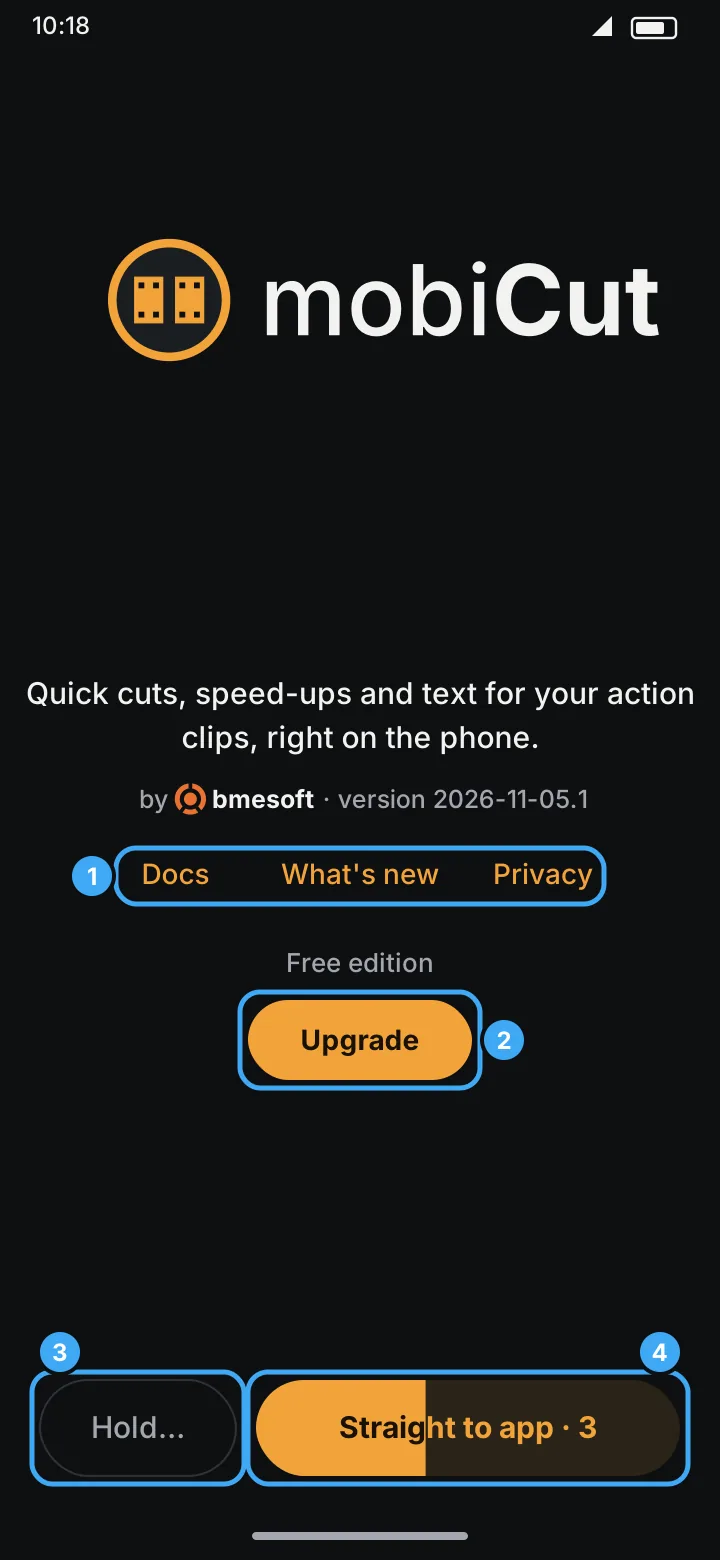
- Docs opens this website and What's new the notes of the latest release, in a browser tab over the app (Back returns to mobiCut). Privacy shows the privacy policy inside the app, also without the internet.
- Upgrade shows what Pro adds. In the Google Play version, while your account can still get the free week of Pro, the button reads Try Pro free. In Pro the screen shows the PRO badge and All features unlocked instead.
- Hold… keeps the welcome screen open (the button then reads Held), for example to note the version for a bug report.
- Straight to app opens your projects right away. The orange fill and the number count down the 5 seconds until it opens them on its own.
Tapping Docs, What's new, Privacy or Upgrade also holds the screen, so it's still there when you come back. When held, tap Straight to app to continue.
The welcome screen is skipped when you open a video from another app with Share → MobiCut; the editor opens directly.