 mobiCut
Docs › On the video
Texts
Short texts over the video: a place, a name, the altitude. You place, turn and style them right on the video, and what you see in the preview is exactly what the export burns in.
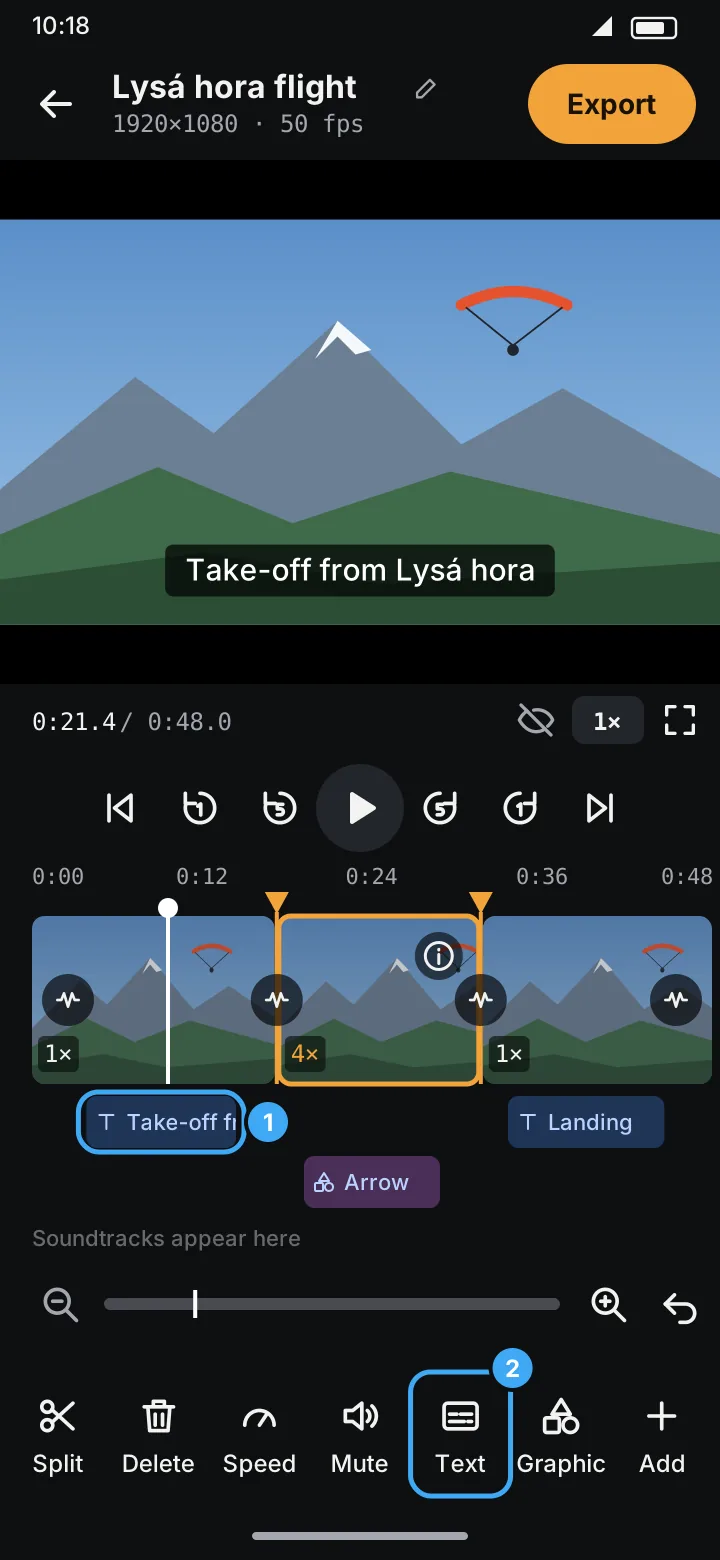
Add a text
- Move the playhead to where the text should appear.
- Tap Text in the toolbar (marker 2).
- The text editor opens under the preview, with the keyboard ready: type the text.
- Tap Done.
A new text starts at the playhead, stays on screen for 5 s, and looks like the last text you edited (same position, look and motion; it always starts straight, not turned). A blue chip appears on the overlay track (marker 1). It starts with a small T, so you can tell it's a text even when the chip is too short to show the words.
If you tap Done without typing anything, the empty text is dropped.
The text editor
Tap a text on the video (while paused) or its blue chip on the timeline to open it. The editor replaces the timeline; the preview stays above it and shows every change at once.
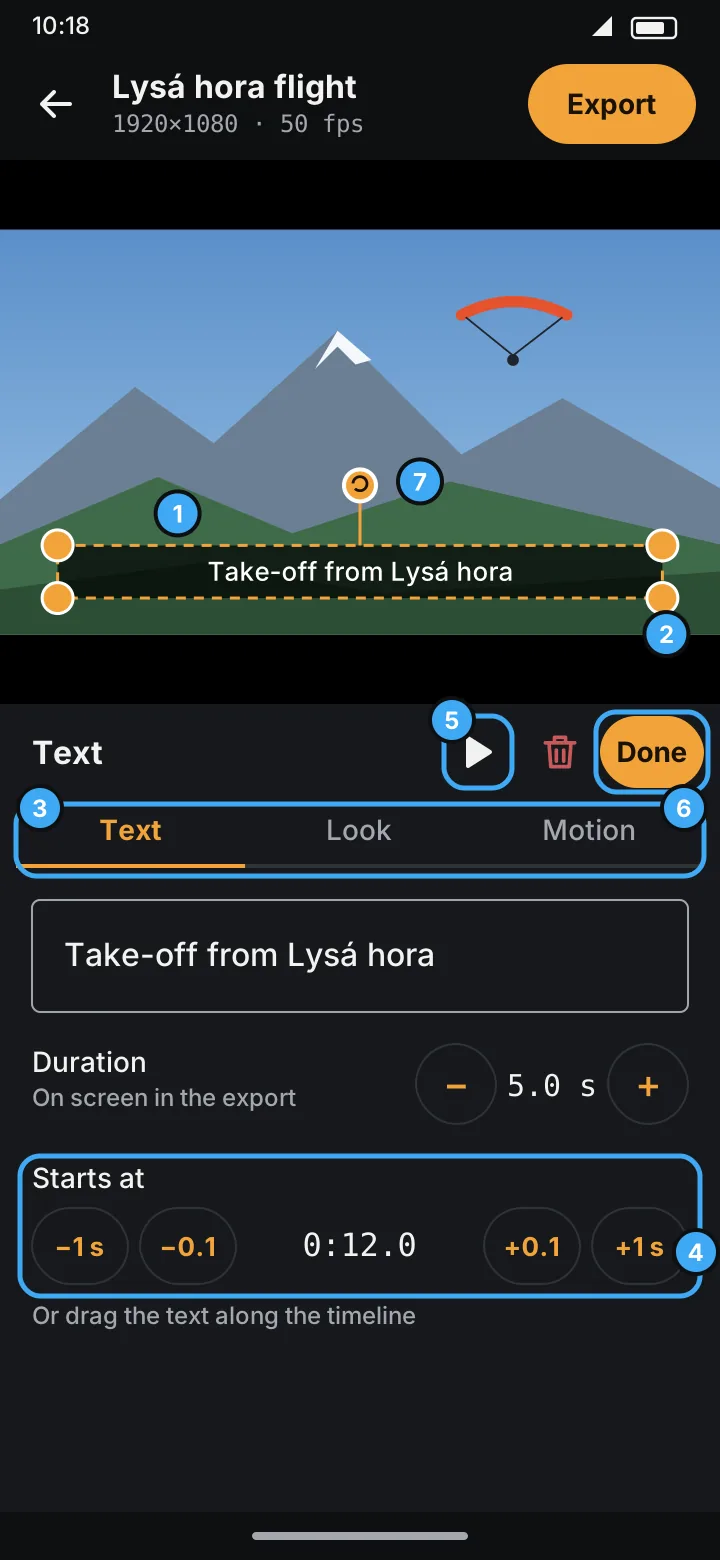
- Drag the text to move it on the video. It snaps to the horizontal centre.
- Drag a corner to resize its box. The text wraps to the box's width; if it needs more room, the box grows taller.
- Tabs: Text, Look and Motion.
- Starts at: move the text in time (see below).
- ▶ plays the text with its entrance and exit, from half a second before to half a second after it. The editor stays open.
- Done closes the editor. Everything you changed is one step for Undo.
- The round handle on a stalk above the box turns the text (see Turn it).
The bin icon deletes the text. The phone's Back button closes the editor, like Done.
Text
- The text itself; it wraps to the box. Enter starts a new line, so a text can have several lines (the field shows up to five).
- Duration: how long it stays on screen in the finished video, − / + in half-second steps (0.5–60 s).
- Starts at: when it appears.
Times count the finished video. A 5 s text over a 4× segment still stays on screen for 5 s; it just covers more of the original footage.
Look
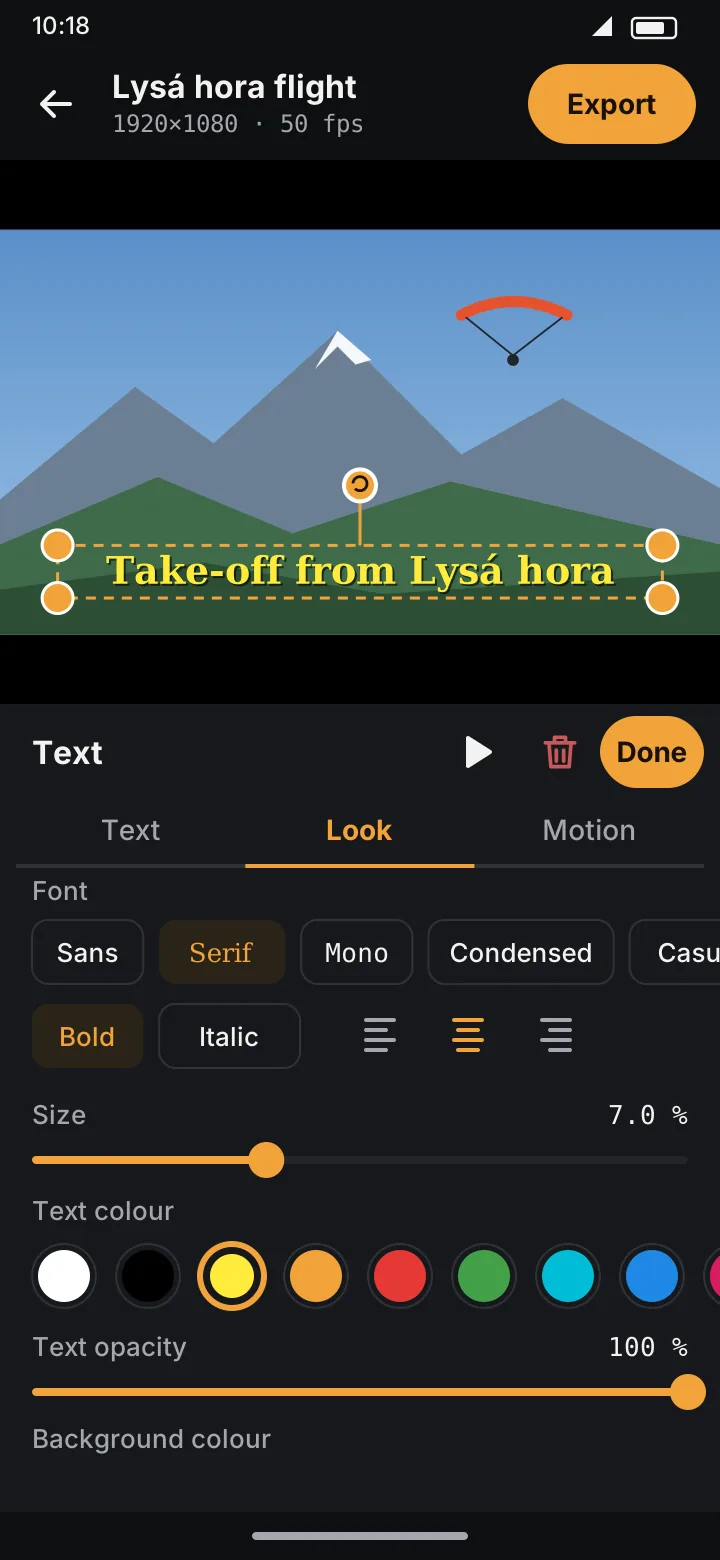
- Font: Sans, Serif, Mono, Condensed, Casual, Cursive, Small caps.
- Bold, Italic and alignment (left, centre, right) inside the box.
- Size: 2–16 % of the video's shorter side, so it looks the same at 720p and 4K.
- Text colour and Text opacity.
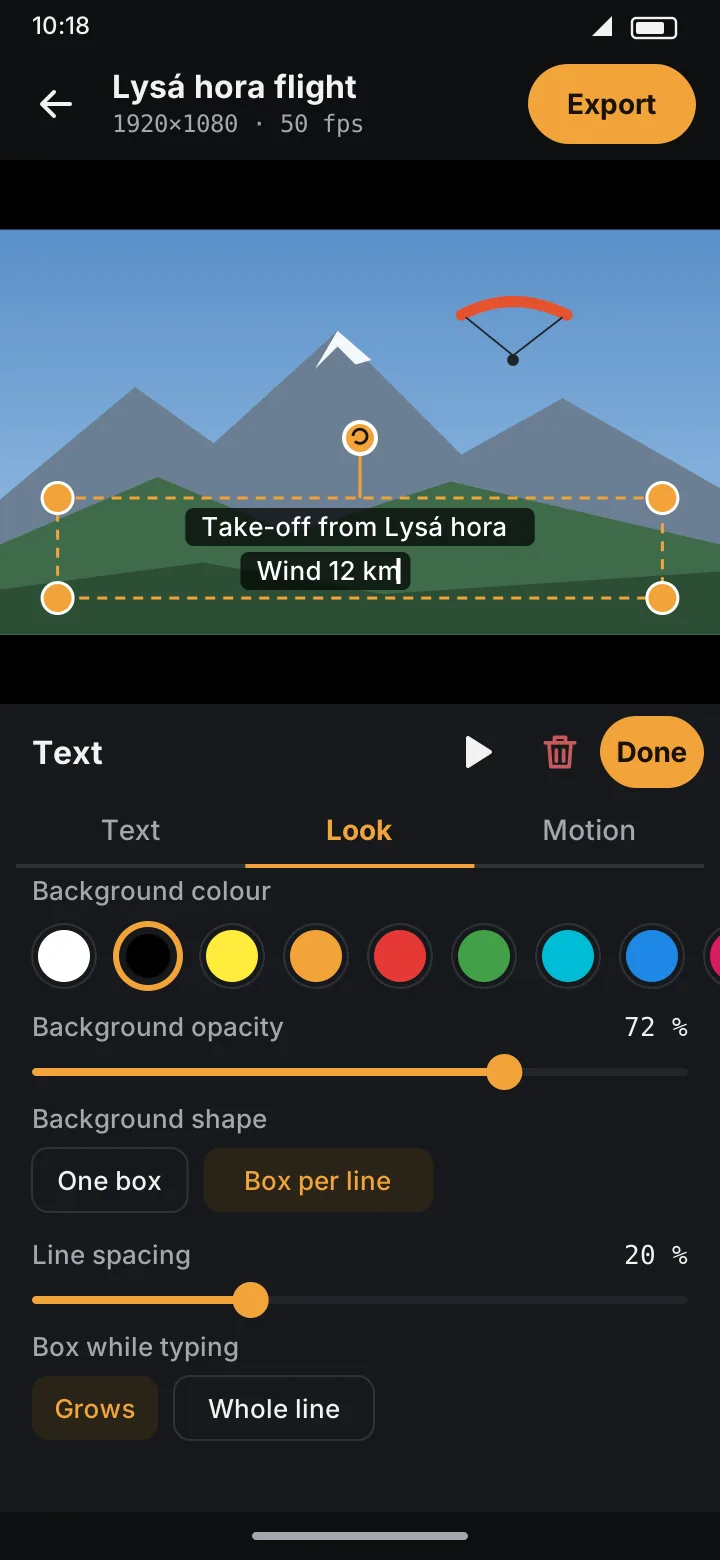
- Background colour and Background opacity: the rounded band behind the text. Below 40 % the text gets a soft shadow, so it stays readable over snow and sky.
- Background shape: One box behind all lines, or Box per line: each line gets its own rounded box, as wide as that line. With Box per line:
- Line spacing: the gap between the boxes, 0–60 % of the text height.
- Box while typing (with the Type entrance): Grows with the letters as they're typed, or shows the Whole line as soon as the line starts.
- Position (or drag it on the video): Top, Middle, Bottom and Centre put the box there in one tap. They're hidden while the text follows a path.
- Rotation: the angle the text is turned by, and Reset to straighten it.
- Use this position, look and motion for all texts copies this text's style to every text in the project.
Motion
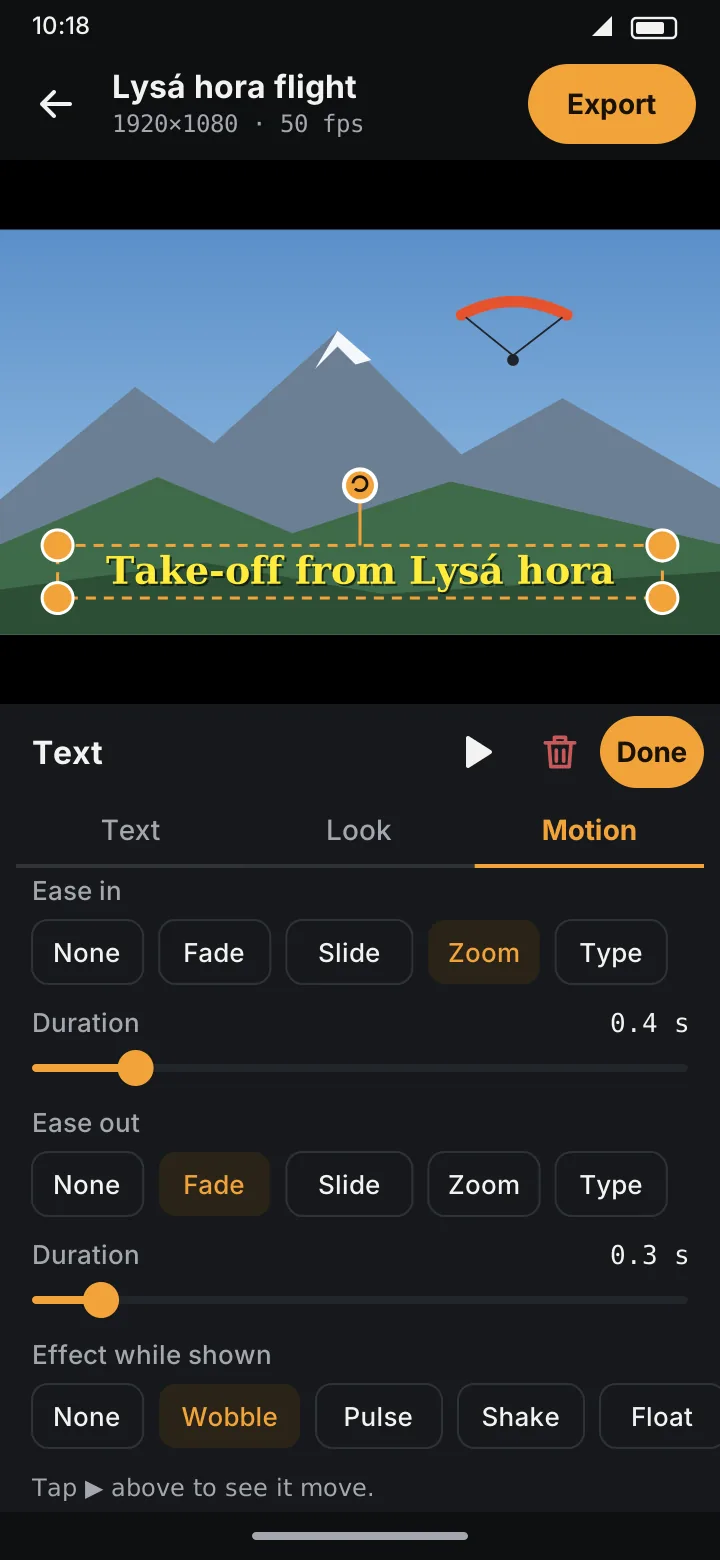
- Ease in and Ease out: how the text appears and goes away.
- None: just on and off,
- Fade,
- Slide: in from below, out downwards, fading,
- Zoom: grows in, shrinks out,
- Type: typed out letter by letter; on the way out it deletes itself and fades.
Each has a Duration of 0.1–2 s; neither takes more than half the text's time on screen. - Typing speed (when it comes in with Type): Slow, Normal or Fast, about 6, 12 or 24 letters a second. A new line pauses for a moment, so lines start one after another. A long text types as long as it needs; only if it wouldn't finish before its exit starts does it speed up. An emoji or a flag appears whole, like one letter. - Cursor (with Type in or out): a cursor at the end of the text while it's being typed.
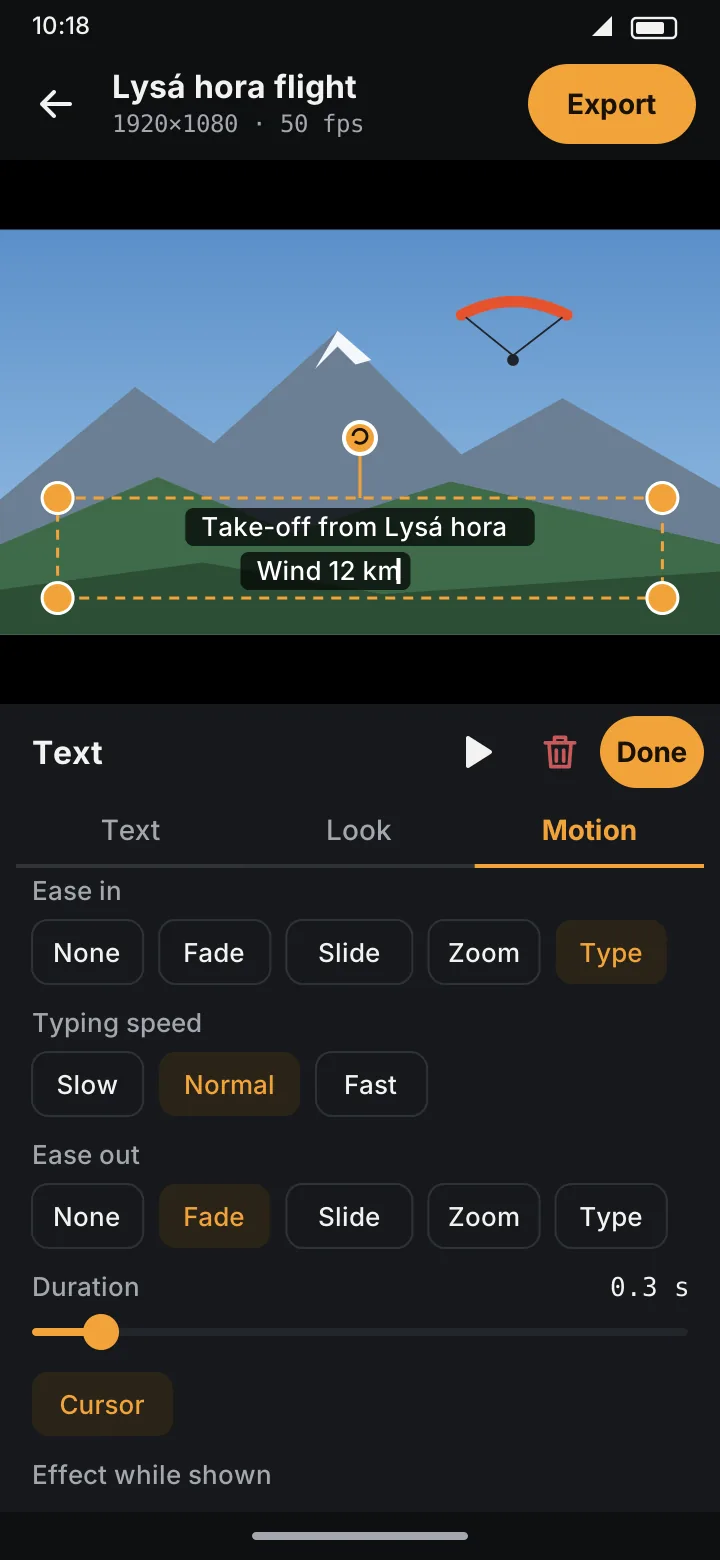
Texts that already used Type in older projects keep their duration until you pick a speed.
- Effect while shown: Wobble (gently rocks), Pulse (breathes bigger and smaller), Shake (jitters), Float (bobs up and down).
- Follow something moving: circle the object and the AI path follows it, or draw the path with your finger (Draw by hand, Pro). See Follow a path.
While paused, the preview shows the text still, so it's easy to place. Tap ▶ to see it move.
Turn it
Drag the round handle above the box to turn the text around its centre. It snaps to straight, upside down and the two sideways angles, with a little tick from the phone when it does. Moving and resizing work the same on a turned text: drag it, or pull a corner (the opposite corner stays put).
The Look tab shows the angle; Reset makes it straight again. Effects like Wobble rock it around the angle you set.
Move it in time
Two ways:
- Drag its chip along the overlay track under the timeline. The playhead follows, so the preview shows where it lands. Each drag is one step for Undo; a tap still opens the editor.
- In the editor, Starts at with −1 s, −0.1, +0.1 and +1 s. The time shown is the time in the finished video, like the times under the preview.
Either way it keeps how long it's on screen, also when it moves onto a sped-up segment. Near the end of the video it's cut short so it doesn't run past it.
Several at once
Texts can overlap in time, for example a title at the top and a caption at the bottom. They all show, each in its own box, together with any graphics.
Texts in the export
When you export, the Text option chooses:
- Burn into video: the texts become part of the picture, with their position, angle, look and motion, exactly as in the preview. Fades from transitions fade them too.
- Off: a clean video without them. They stay in the project.
Texts used to be called subtitles, and could also be saved as a separate .srt file. That option is gone; older projects open with all their texts as they were.
For a full-screen title card between parts of the video, use a text slide instead.