 mobiCut
Docs › Build a story
Add a soundtrack
Put music (or any audio file) under the video. You can add several, one after another or overlapping.
Add a soundtrack
- Move the playhead to where the music should start.
- Tap Add, then Soundtrack at the pointer.
- Pick the audio file.
The track starts at the playhead's place in the finished video (at the very start if the playhead is at the end). A soundtrack lane appears under the overlay track: one green chip per track, with ♪ and the track's name. Overlapping tracks stack in the lane and play together.
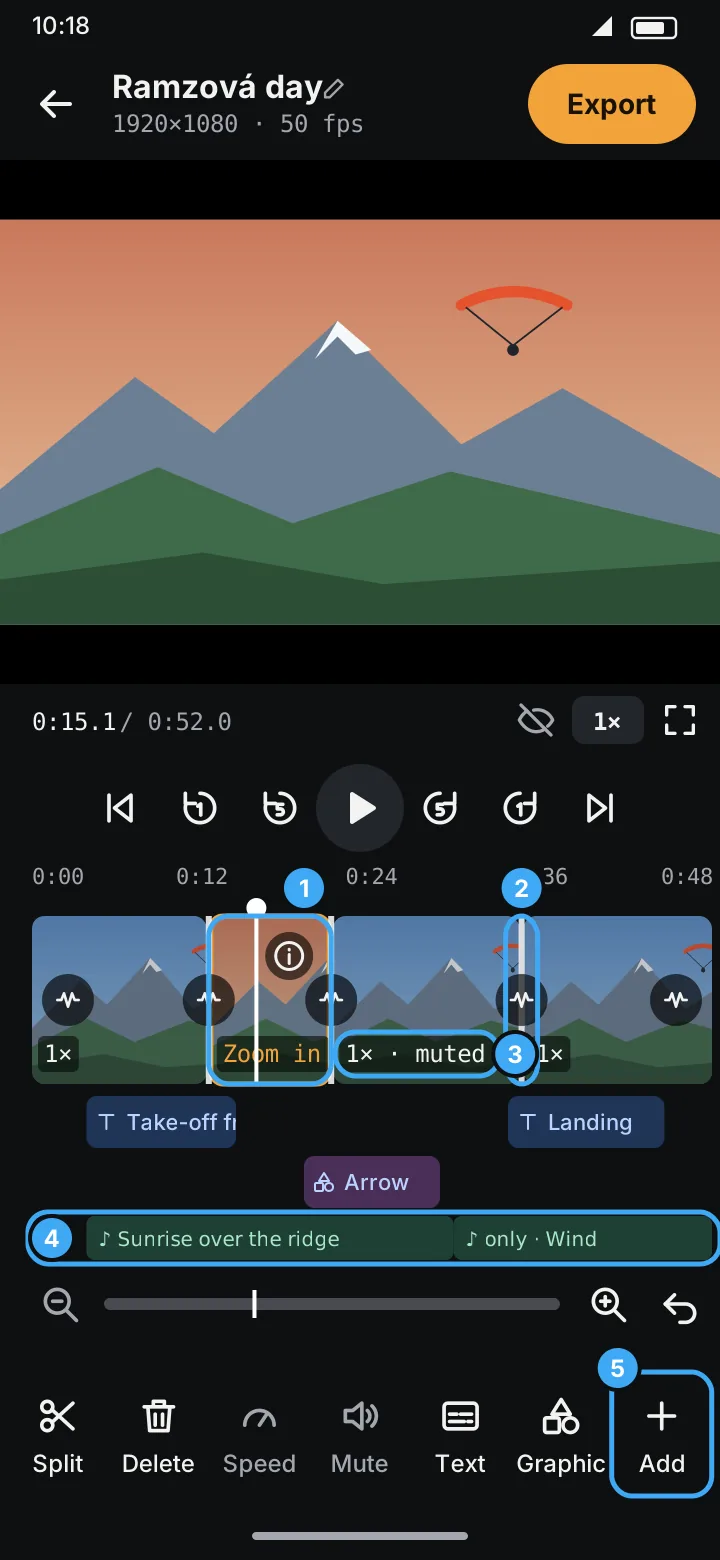
A soundtrack belongs to the finished video's timeline: it stays at its place when you split, delete or speed up the video under it. Whatever runs past the end of the video is cut off. A chip turns red when the track starts after the video ends, so nothing of it would play.
Track settings
Tap a track's chip.
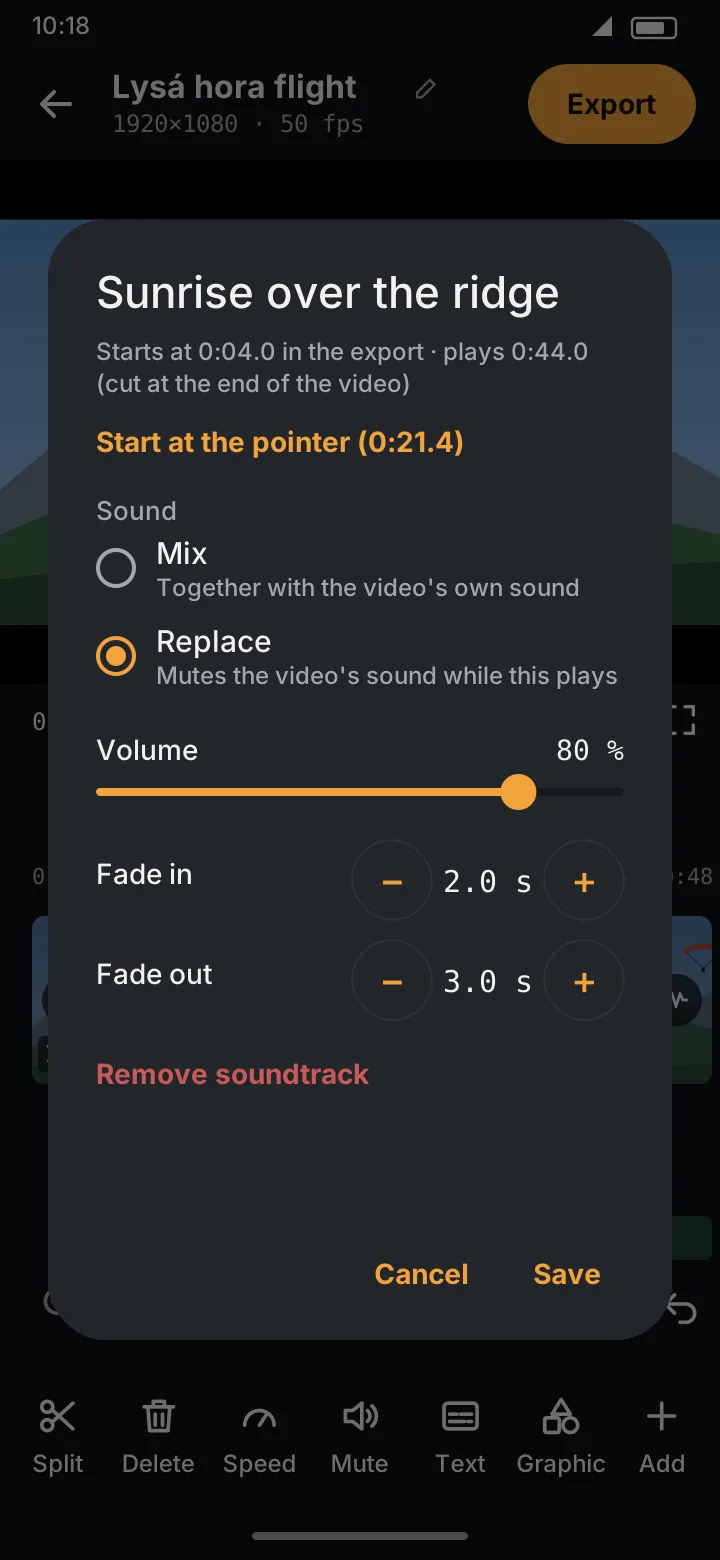
| Setting | What it does |
|---|---|
| Starts at … · plays … | Where it starts in the finished video, and how long it actually plays |
| Start at the pointer | Moves the track to start at the playhead |
| Mix | Plays together with the video's own sound |
| Replace | Mutes the video's sound while this track plays (its chip says ♪ only) |
| Volume | 0–100 %, in 5 % steps |
| Fade in / Fade out | 0–10 s each, in 0.5 s steps |
| Remove soundtrack | Takes it out (Undo brings it back) |
Tap Save to apply.
- Fades are each at most half of the part that plays. The fade-out ends where the track ends, which is the end of the video when the track is cut off, so a long song fades out nicely with the video.
- With Replace and a fade-in, the video's sound fades out as the music fades in, and comes back the same way at the end.
- Fades at the start or end of the video (transitions) fade the video's own sound, not the soundtracks; use the track's own fades for those.
The preview plays the soundtracks along with the video. Soundtracks are in both editions.