 mobiCut
Docs › On the video
Graphics
Smileys, arrows, circles, stars and your own pictures over the video: point at the landing spot, circle the other glider, put a laughing face on the fall. Graphics work like texts: you place, resize and turn them on the video, give them a look and motion, and they're burned into the export exactly as the preview shows.
Add a graphic
- Move the playhead to where the graphic should appear.
- Tap Graphic in the toolbar.
- Pick a shape, or Your own picture from Gallery.
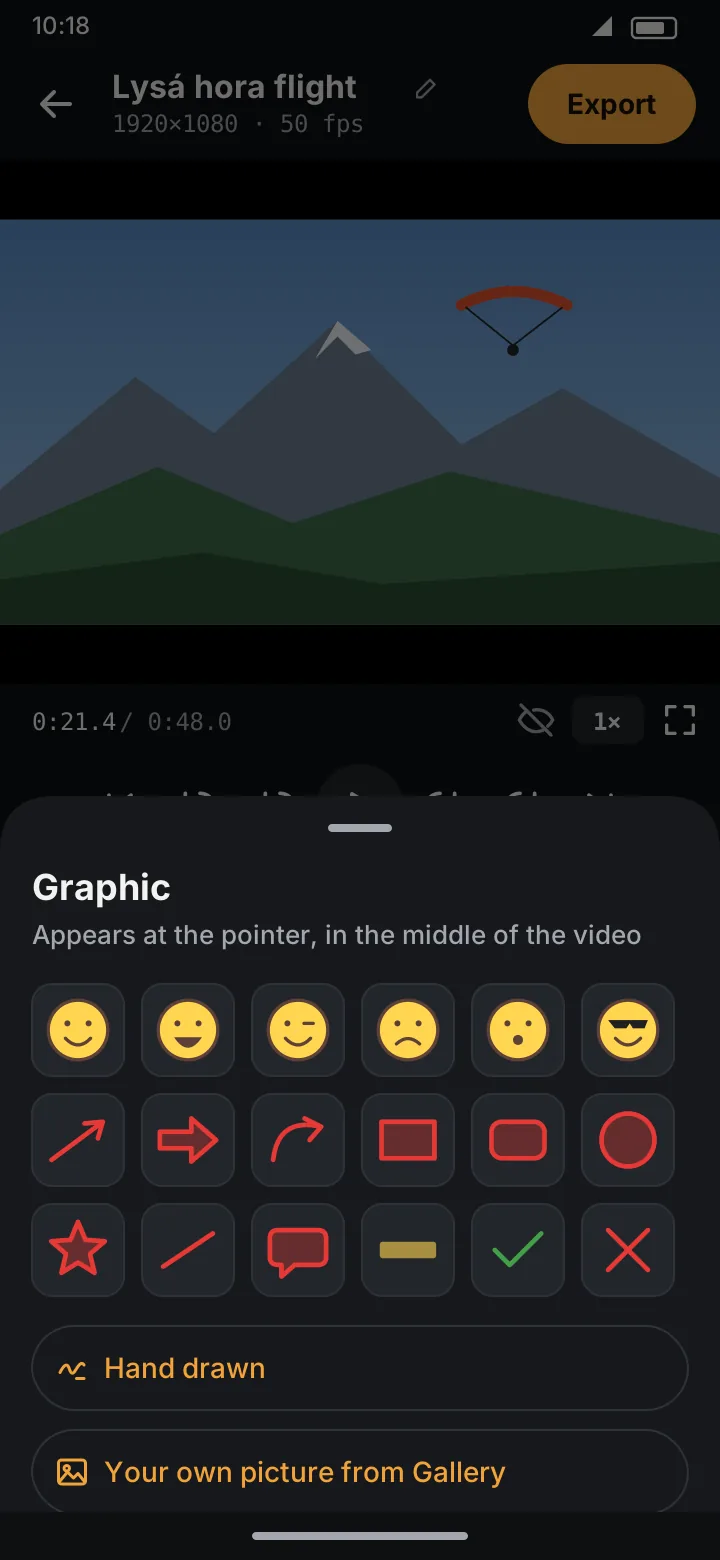
The new graphic appears at the playhead, in the middle of the video, for 5 s, with the motion of the last graphic you edited. Its editor opens right away, and a purple chip with its shape's name appears on the overlay track under the timeline.
The shapes
| Group | Shapes |
|---|---|
| Smileys | Happy, Laughing, Wink, Sad, Surprised, Cool |
| Arrows and lines | Arrow, Block arrow, Curved arrow, Line |
| Shapes | Rectangle, Rounded, Circle, Star, Speech bubble, Marker (a highlighter stroke) |
| Marks | Tick, Cross |
| Picture | Your own picture: a logo, a map, a photo of the site |
Smileys, the star, the tick, the cross and pictures keep their proportions; arrows, lines, rectangles and circles stretch to the box, so a circle can become an ellipse.
The graphic editor
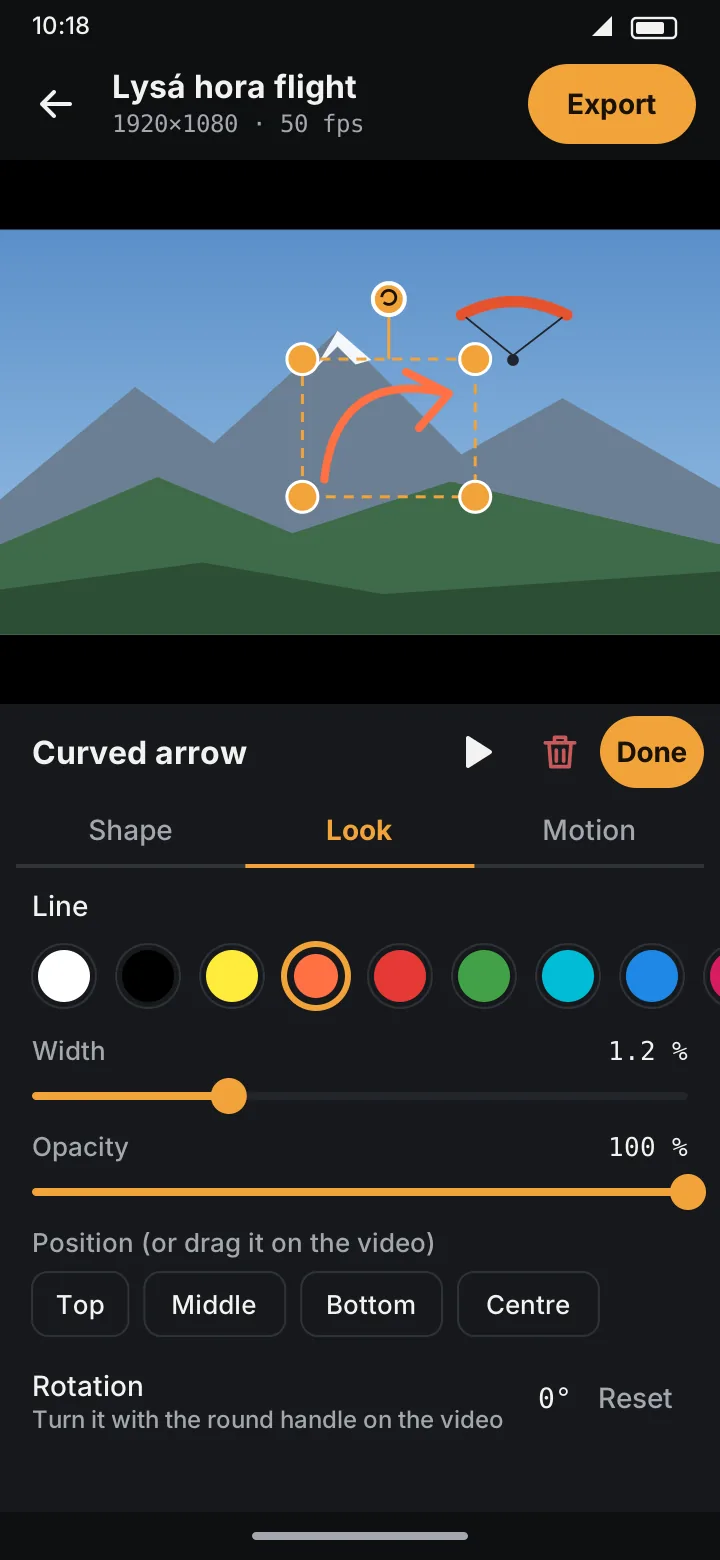
On the video, the graphic behaves like a text:
- drag it to move it (it snaps to the horizontal centre),
- drag a corner to resize it,
- drag the round handle above it to turn it; it snaps to straight and sideways, with a tick.
Below the preview are three tabs:
Shape
- The same shapes as when adding: tap another one to swap. A changed look carries over to shapes of the same kind (from one smiley to another, from a rectangle to a star).
- For a picture, instead: Another picture from Gallery.
- Duration and Starts at, as for texts.
Look
What you can set depends on the shape:
| Shape | Settings |
|---|---|
| Smileys | Features & rim (colour, width, opacity) and Face colour (colour, opacity) |
| Rectangle, circle, star, speech bubble, marker, block arrow | Outline (on/off, colour, width, opacity) and Fill (on/off, colour, opacity) |
| Arrow, curved arrow, line, tick, cross | Line (colour, width, opacity) |
| Picture | Opacity and Border (on/off, colour, width) |
Widths are a percentage of the video's shorter side, so the graphic looks the same at 720p and 4K. Further down: Position (or drag it on the video), Rotation with Reset, and Use this look and motion for all graphics.
Motion
The same Ease in, Ease out and Effect while shown as for texts (only Type is missing, it's for letters), and Follow something moving to make the graphic follow a path.
Done closes the editor; all changes are one step for Undo. The bin icon deletes the graphic.
Hand drawn
Draw your own mark on the video: circle the landing spot, underline a name.
- In the Graphic sheet, tap Hand drawn. The video pauses and fills the screen.
- Draw with your finger. Lift it and touch again for another line.
- Under the video, set the Line thickness and the colour; ↶ takes back the last line.
- Tap Done drawing to keep it, or Cancel.
The drawing becomes a graphic like any other: move, resize, turn and animate it. Its Shape tab has Draw again, and Look sets the line thickness and colour.
Your own picture
Pick a picture from the gallery and it's copied into the project (large photos are scaled down to 1600 px). Pictures with transparency, like a PNG logo, keep it. The copy is backed up with the project, so the graphic stays even if you delete the original from the gallery.
Move it in time
Drag its chip along the overlay track, or use Starts at in the Shape tab. It works exactly as for texts.
In the export
Graphics are always burned into the exported video, exactly as the preview shows them. The export's Text option (Burn into video / Off) only decides about texts; graphics stay in either way.
Free and Pro
Graphics are Free: every shape, your own pictures and hand drawing. Only making a graphic follow a path drawn by hand is Pro; the AI path is free. See Free and Pro.