 mobiCut
Docs › Build a story
Transitions
Soften the cuts between segments and fade the video in and out.
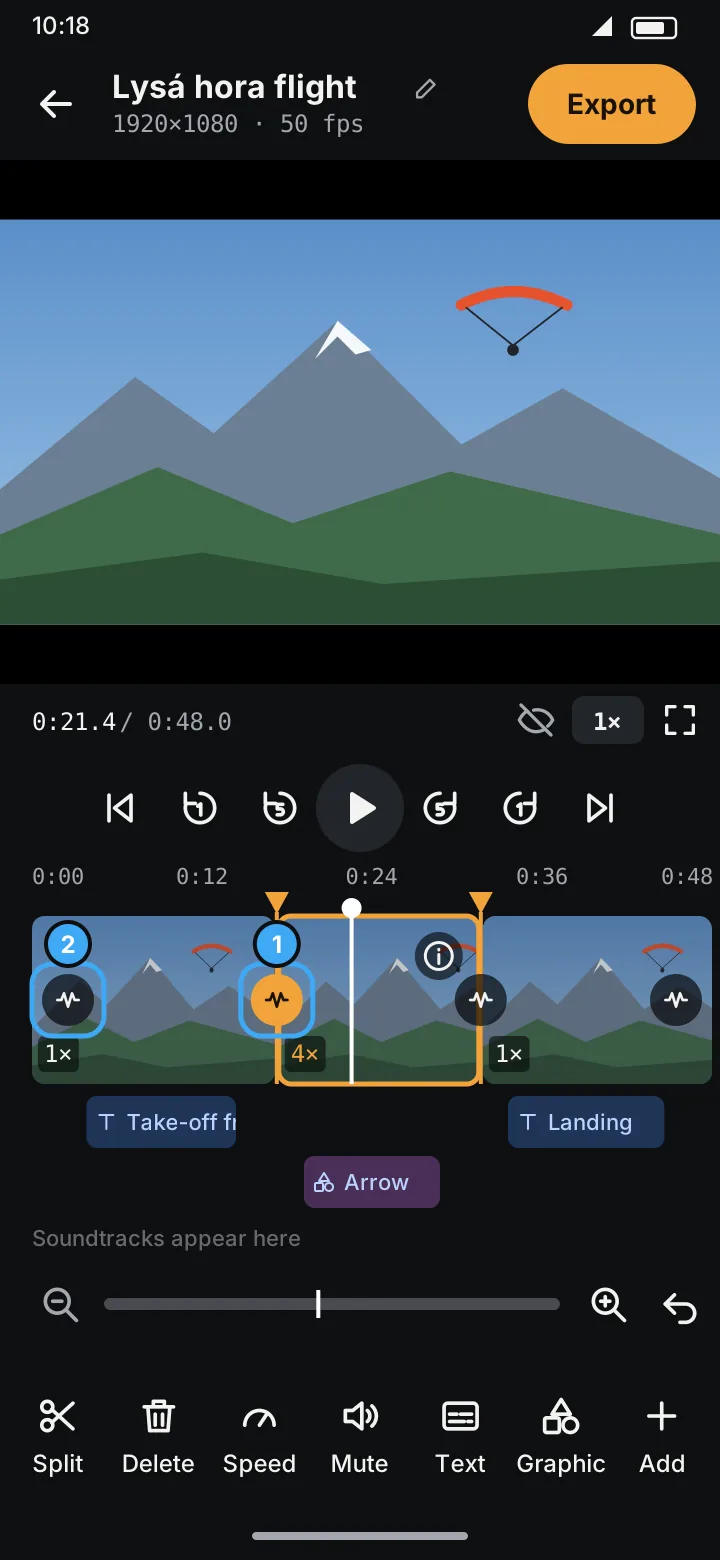
Where transitions go
With deleted segments hidden, the timeline shows a round button:
- at the start of the video (marker 2): fade in,
- on every split (marker 1): transition between two segments,
- at the end: fade out.
A button turns orange when it has a transition.
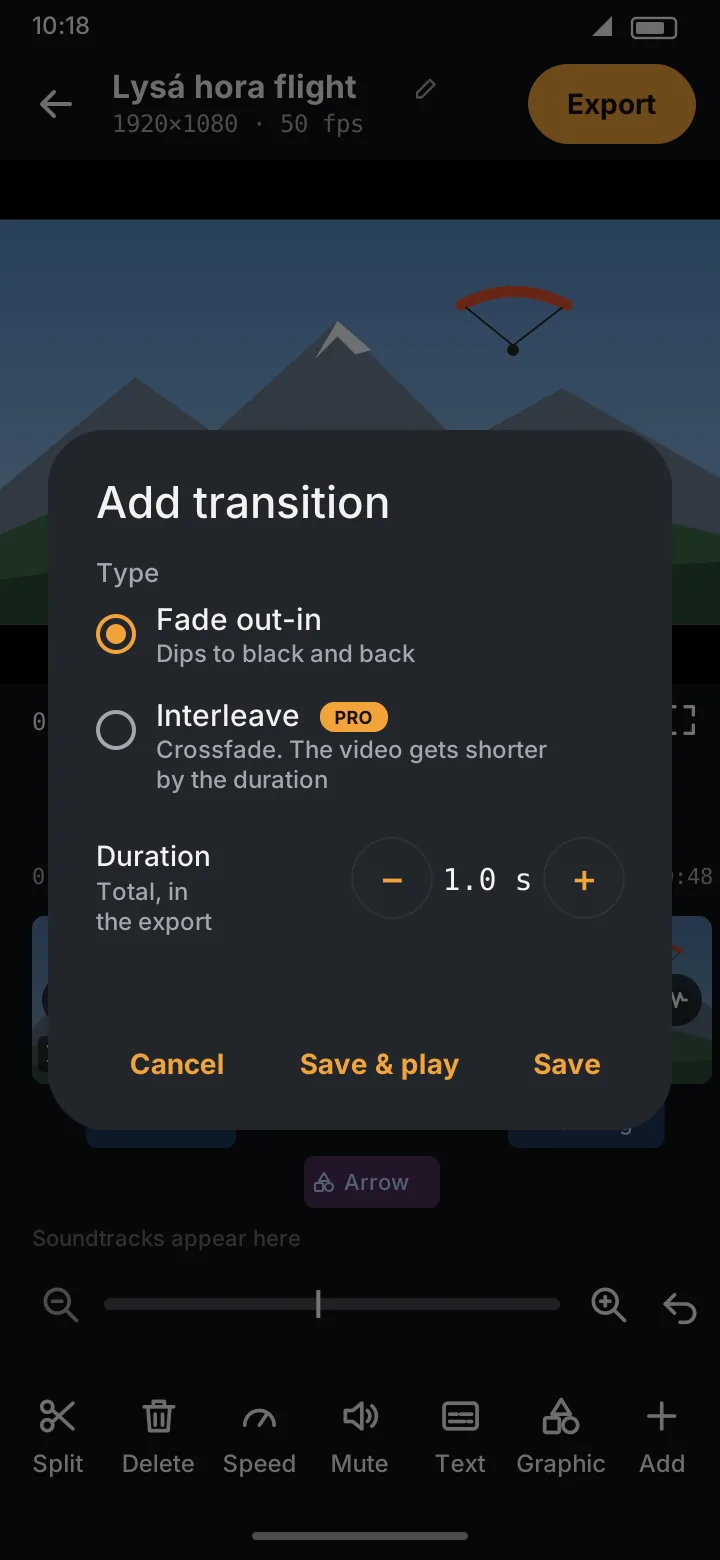
Add a transition
- Tap the round button.
- Between segments, choose the type: - Fade out-in: the picture dips to black and comes back. - Interleave PRO: a crossfade, the end of one segment blends into the start of the next. The video gets shorter by the transition's duration.
- Set the Duration (0.5–10 s; total, in the finished video).
- Tap Save, or Save & play to watch it right away: the preview plays the transition with 1.5 s before and after it.
At the start and end there's no type to choose: the video fades in from black or out to black, picture and sound together.
Transitions at every join
To give the whole video the same transitions in one go, tap Add → Transitions at every join.
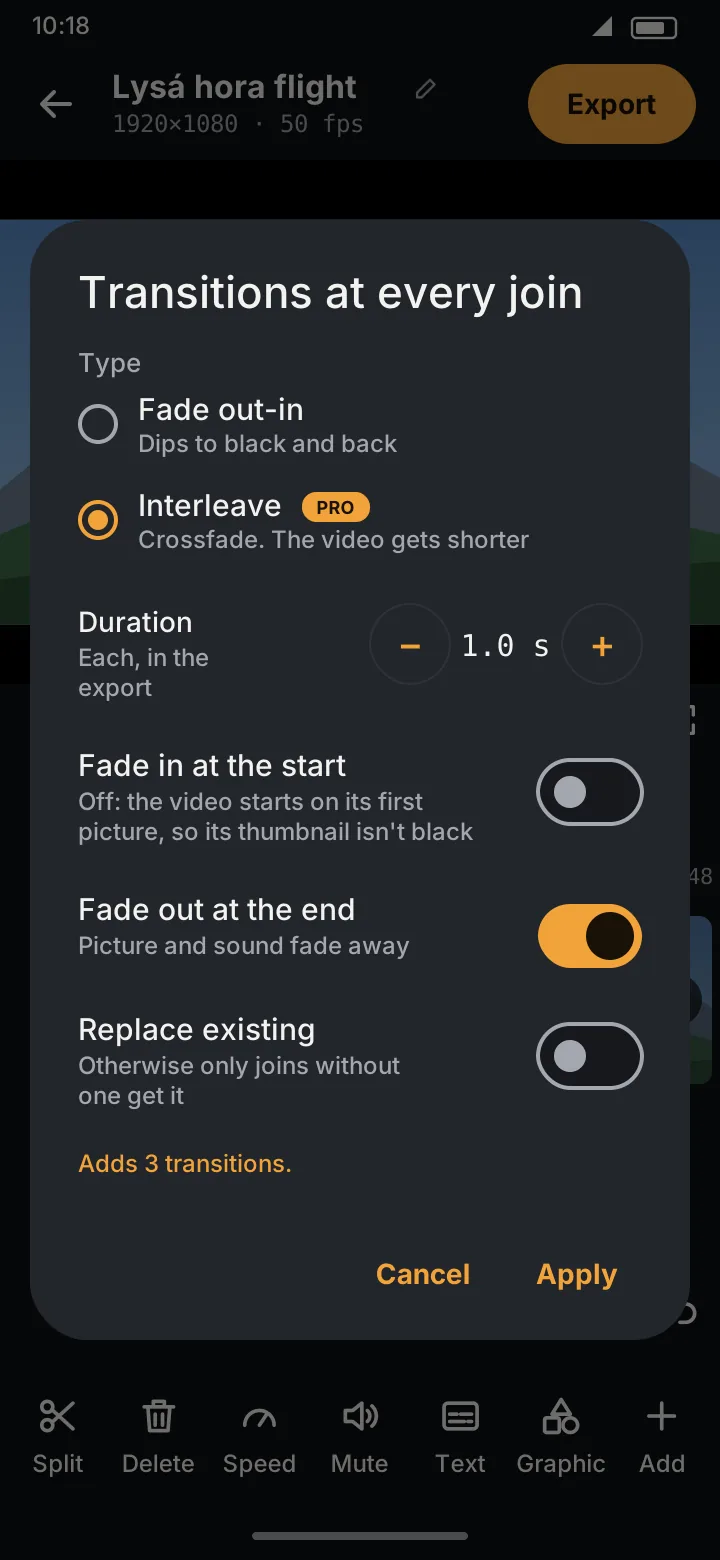
- Type: Fade out-in or Interleave PRO.
- Duration of each, in the export.
- Fade in at the start: also fade in from black at the beginning. Off by default, so the video starts on its first picture and its thumbnail in your gallery isn't black.
- Fade out at the end: also fade out to black at the end, picture and sound (on by default).
- Replace existing (when some joins already have a transition): set every join to this one. Otherwise only joins without a transition get it.
The line at the bottom says what Apply will do (Adds 3 transitions.). The whole change is one step for Undo, and your choice is remembered for next time (to start with: Interleave in Pro, Fade out-in in Free, 1 s, no fade in, fade out at the end).
When you export
If some joins have no transition when you tap Export, mobiCut asks once: Add transitions? It says how many places have none and offers your remembered type and duration:
- Fade in at the start (off unless you switch it on) adds the fade in too,
- Add & export adds them and goes on to the export,
- Export as is exports without them (it won't ask again for this project until you reopen the app),
- Change type or duration… opens Transitions at every join.
In the preview
The preview plays transitions as the export will have them: fades dim the picture to black and back, and an Interleave is a real crossfade, the next segment fading in over the end of the previous one, with the sound mixed the same way. Pause in the middle of a transition and you see that very frame, also while scrubbing through it.
Change or remove
Tap the orange button again, change the settings, or tap Remove transition.
A transition can't be longer than the segments next to it allow. If they're short, the dialog says the transition is currently limited; it uses the longest duration that fits.
Free and Pro
| Transition | Free | Pro |
|---|---|---|
| Fade in at the start, fade out at the end | ✓ | ✓ |
| Fade out-in between segments | ✓ | ✓ |
| Interleave (crossfade) between segments | ✓ |
In Free, Interleave is shown with a PRO badge; tapping it explains the feature. See Free and Pro.